Drawing_Layer
In addition to drawing or inserting polygon, line, point (that is common across both the drawing layer and vector layer), you can draw or insert the following additional features in the drawing layer:
-
Draw or insert point tool in two ways: point and symbol.
-
Draw or insert a text tool.
Polygon Tool
As the name suggests, you can use the polygon tool to draw a polygon feature that is a GIS object that stores its geographic representation. It is but a series of X and Y coordinate pairs that enclose an area.
Prerequisites: In the following procedure steps, it is assumed that you have accessed a workspace page, selected a new or existing drawing layer or vector layer, and now you are ready to draw or insert a feature.
To draw a polygon feature, do the following:
-
On the Analyst Tools, click the Pencil icon and then click the Polygon icon to activate the feature.
-
Locate a place on the map (where you want to draw a polygon) and then click on the map to insert the first vertex of the polygon.
-
Proceed to insert vertices and double click to complete a polygon.
The Properties panel is displayed.
-
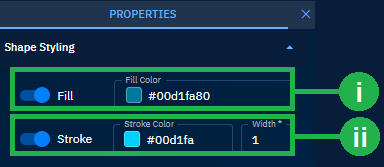
In the Properties panel, do the following:
i. Click the Fill Colour field to select a colour of the point or copy-paste a hexadecimal (HEX) color.
ii. Click the Stroke Color field to select a colour of the point or copy-paste a hexadecimal (HEX) color and then proceed to increase or decrease the width of the stroke (boundary) in the Width field.
-
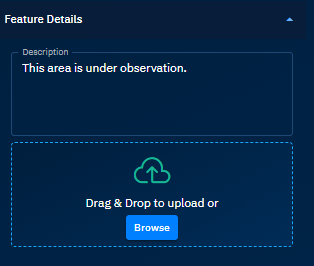
Type description of the point in the Description field.
-
Click the Browse button to upload a graphic or photo to add a visual description of the point.
Line Tool
You can use the Line tool to draw a line on a map. A line is a shape defined by a connected series of unique X and Y coordinate pairs.
Prerequisites: In the following procedure steps, it is assumed that you have accessed a workspace page, selected a new or existing drawing layer or vector layer, and now you are ready to draw or insert a feature.
To draw a line feature, do the following:
-
On the Analyst Tools, click the Pencil icon and then click the Line icon to activate the feature.
-
Locate a place on the map (where you want to draw a line) and then click on the map to insert the first vertex of the line. Continue drawing the line by clicking on the map canvas to set vertices.
-
Double-click to finish drawing the line. The Properties panel is displayed.
-
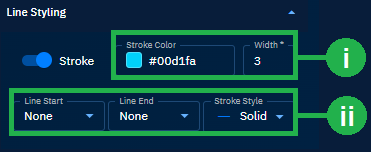
In the Properties panel, do the following:
i. Click the Stroke Color field to select a colour of the point or copy-paste a hexadecimal (HEX) color and then proceed to increase or decrease the width of the stroke (boundary) in the Width field.
ii. Select an appropriate start and end line terminators from the Line Start and Line End drop-down list. Then proceed to select a stroke style from the Stroke Style drop-down list.
Point Tool
You can use the point tool to draw or insert a point as a geo location in both the drawing layer and vector layer. The procedure to draw or insert a point remains the same for both the layers however when you insert a point in the drawing layer, you can insert the point as a point or a symbol.
Prerequisites: In the following procedure steps, it is assumed that you have accessed a workspace page, selected a new or existing drawing layer or vector layer, and now you are ready to draw or insert a feature.
Point
A point is a geolocation that you can draw or insert on the map.
To draw a point, do the following:
-
On the Analyst Tools Ribbon, click the Pencil icon and then click the Point Tool icon to activate the feature.
-
Locate a place on the map (where you want to draw a point) and then click on the map to insert the first vertex of the point.
The Properties panel is displayed.
-
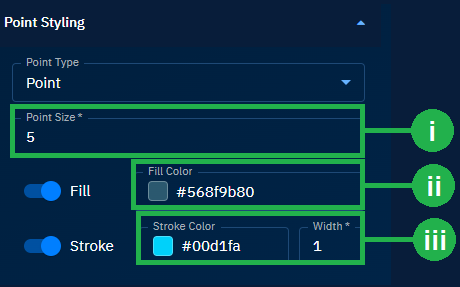
In the Properties panel, do the following:
i. Type a number to increase or decrease the size of the point in the Point Size field.
ii. Click the Fill Colour field to select a colour of the point or copy-paste a hexadecimal (HEX) color
iii. Click the Stroke Color field to select a colour of the point or copy-paste a hexadecimal (HEX) color and then proceed to increase or decrease the width of the stroke (boundary) in the Width field.
-
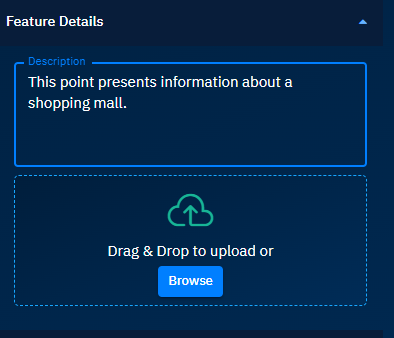
Type description of the point in the Description field.
-
Click the Browse button to upload a graphic or photo to add a visual description of the point.
Symbol
A symbol – as the name suggests – depicts a specific location on the map with a symbol. For example, airport, amusement park, bank, and so on.
To draw a symbol, do the following:
-
On the Analyst Tools Ribbon, click the Pencil icon and then click the Point Tool icon to activate the feature.
-
Locate a place on the map (where you want to draw a point) and then click on the map to insert the first vertex of the point.
The Properties panel is displayed.
-
In the Properties panel, do the following
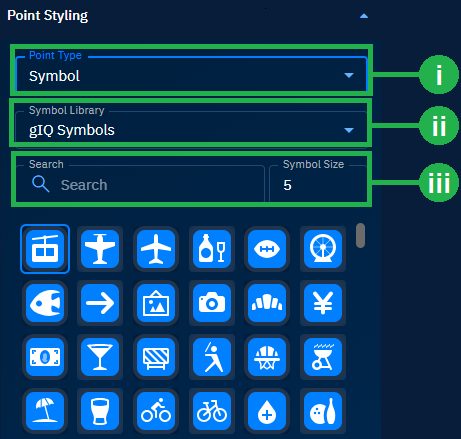
i. Click the Point Type drop-down list and select the Symbol option.
ii. Type the name of the symbol in the Search field to find an appropriate symbol and click it to drop the symbol on the map
iii. Scroll down, find a symbol, and click it to drop the symbol on the map. Then proceed to increase or decrease the width of the symbol in the Symbol Size field.
-
Type description of the point in the Description field.
-
Click the Browse button to upload a graphic or photo to add a visual description of the point.
Text
In case you want to insert short descriptions for specific locations, you can use the text feature. In addition, you can style the text feature to ensure that it displays information in an appropriate format.
To draw a symbol, do the following:
-
On the Analyst Tools Ribbon, click the Pencil icon and then click the Text Tool icon to activate the feature.
-
Locate a place on the map (where you want to draw a point) and then click on the map to insert the text.
The Properties panel is displayed.
- In the Properties panel, do the following:
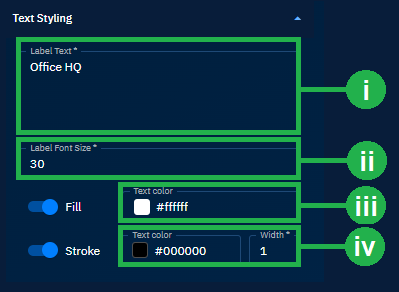
i. Type the text that you want to insert in the Label Text field.
ii. Increase or decrease the font of the text in the Label Font Size field.
iii. Click the Fill Colour field to select a colour of the point or copy-paste a hexadecimal (HEX) color
iv. Click the Stroke Color field to select a colour of the point or copy-paste a hexadecimal (HEX) color and then proceed to increase or decrease the width of the stroke (boundary) in the Width field.
-
Type description of the point in the Description field.
-
Click the Browse button to upload a graphic or photo to add a visual description of the point.